 MixShot
How to hide sensitive information in a screenshot
Before you send an image to support or a group chat, it's worth hiding passwords, emails, names and numbers. Here's how to do it in seconds without missing anything.
Updated November 18, 2026
What usually needs hiding
- Passwords, tokens and access keys.
- Emails, phone numbers, names and addresses.
- Card, contract and order numbers.
- Browser tabs, the address bar and notifications, if they show too much.
How to blur data in MixShot
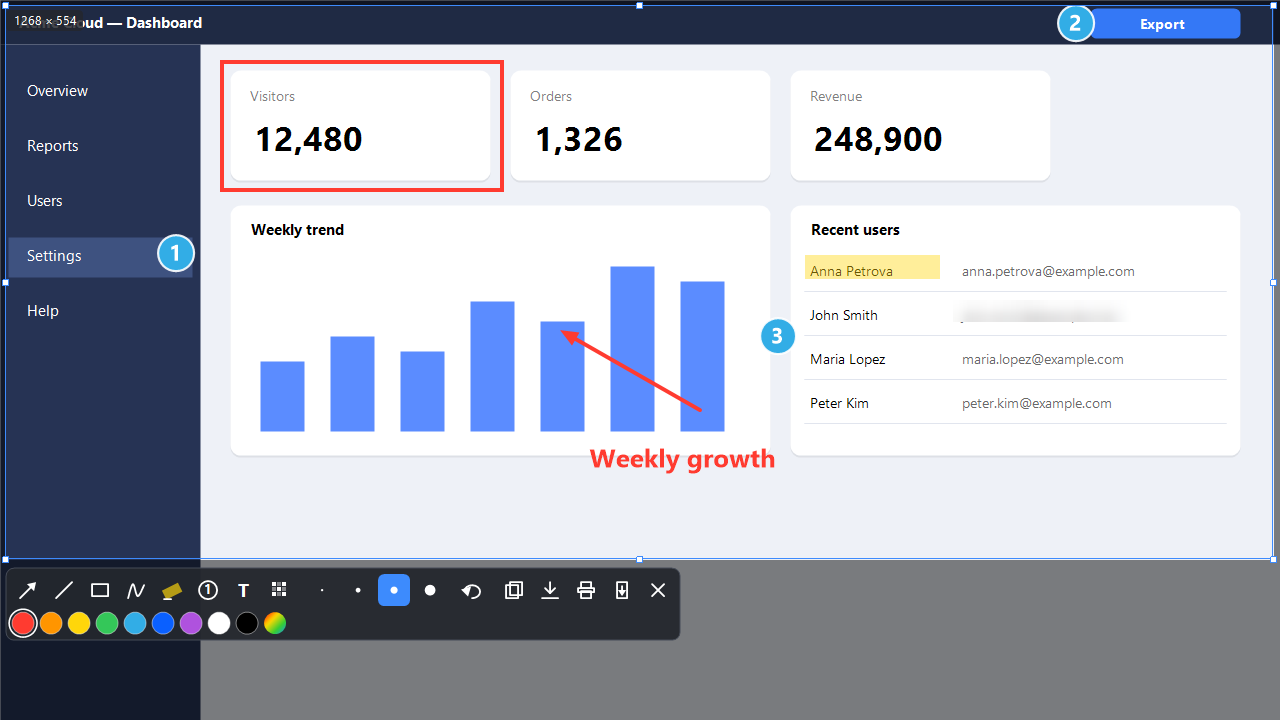
- Press PrintScreen and select an area of the screen.
- On the toolbar under the frame, choose Blur.
- Drag over the data you want to hide. Hold Shift for a square area.
- Press Ctrl+C to copy the image or Ctrl+S to save a PNG.
The image under the area is replaced with a strong blur, and the details can't be restored. You can add an arrow or a step number on top: the screenshot stays clear and the data stays hidden.
What to check before sending
- Cover the data with some margin so no letter edges stay visible.
- Look at the whole image, not just the main spot: data often hides in corners and window titles.
- If you only need to show one window, select just that window. What isn't in the image doesn't need hiding.
Where the image goes next
If the data matters, watch the image's path too. MixShot does not upload it: the file stays where you saved it. With your permission, it looks up the latest version number on mixapp.org once a day; screenshots and other data are not sent. See the privacy policy.