 MixShot
How to record your screen on Windows
Record a Windows screen area as MP4 or GIF with MixShot: add annotations, pause and attach the file to a chat with Ctrl+V. Free, portable and offline.
Updated November 18, 2026
Start a recording
- Start MixShot, press PrintScreen and select an area of at least 64×64 px.
- Add arrows, labels or blur before recording. The video includes the cursor and click highlights; you cannot draw while recording.
- Choose MP4 or GIF beside the red recording button, then click it or press Ctrl+R. Your format choice is remembered.
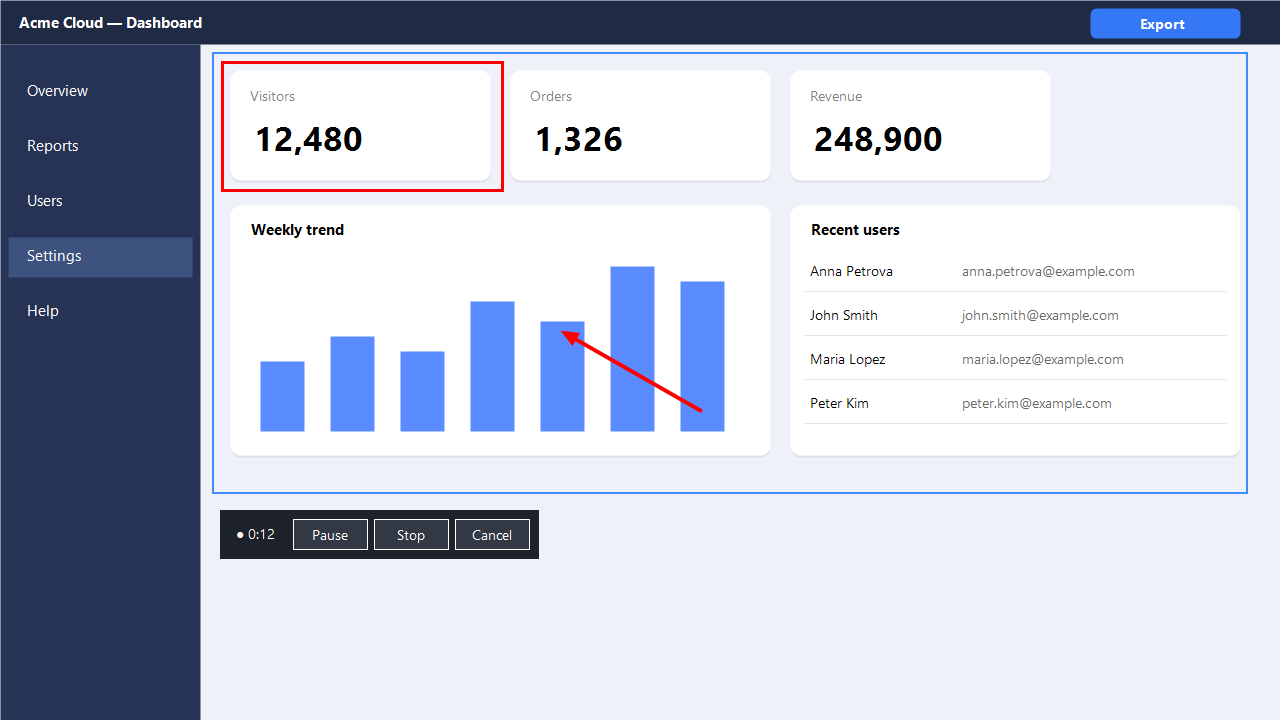
Pause and share in a chat
Pause freezes time and frames; Resume continues recording. Stop or the screenshot hotkey saves the video. Cancel deletes the temporary file. The tray menu has these controls too.
The video is saved in the screenshots folder (or Pictures if unavailable) and copied to the clipboard as a file. Press Ctrl+V in a chat to attach it. Click the notification to reveal the file.
Formats and limits
MP4 has no duration limit; GIF supports up to 60 seconds excluding pauses and 1280 px on its longest side. Audio is not recorded. Copy-protected video appears black due to Windows restrictions. Choose GIF if MP4 is unavailable.
Screen recording works offline. Videos are created and stored only on your computer; nothing is sent anywhere. Cancelling deletes the temporary file.